Instructors: You can share the text of these instructions in your Assignment Descriptions. You can also share these instructions as a document: Using Canvas Studio for Video Submissions (.pdf)
Do not upload videos directly to Canvas. Rather, upload them to an external location and then share with your instructor. These instructions will show how to use Canvas Studio to share your video.
If your video is stored on a separate site, such as YouTube, paste the link in the content editor and then Submit Assignment.
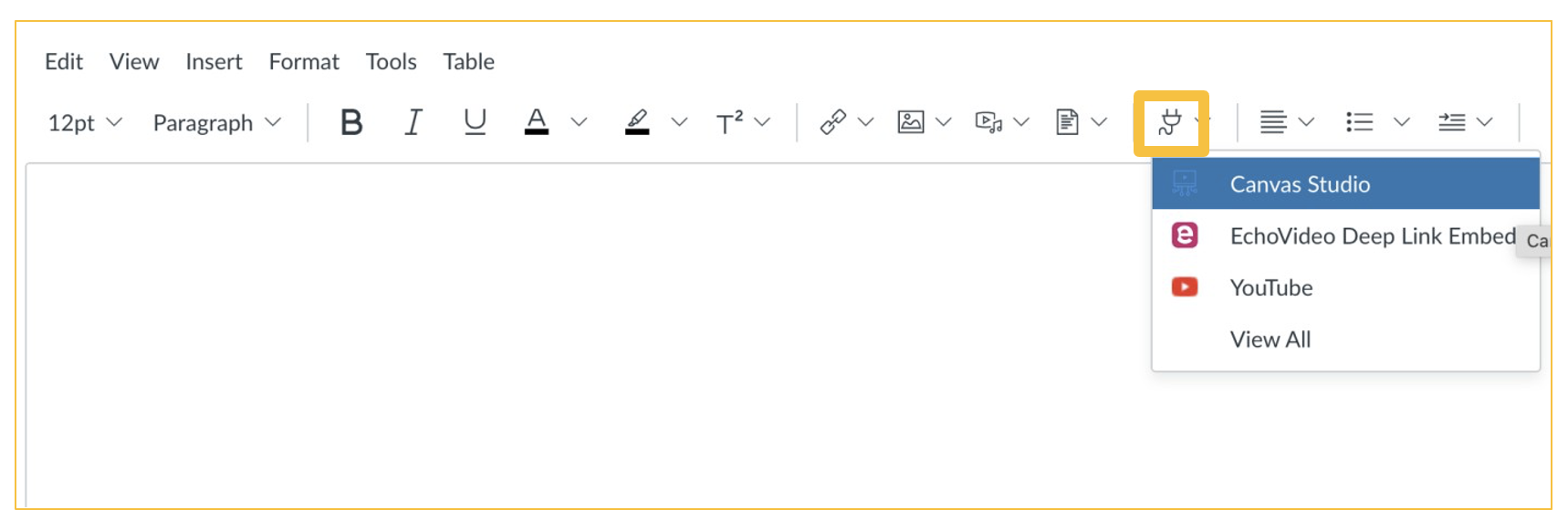
- In the content editor, select the Apps button (looks like a plug). Select Canvas Studio.
- If you already recorded your video, select Add Video. Find your video, add it, and skip to Step 6. To record your video, select + Create and Studio Capture
- Allow your camera and microphone if prompted.
- Select Start Recording and record your video.
- When you are satisfied with your recording, select Save Media. Your video will now be in your Studio Library.
- Select the video, then Embed Media, and Submit Assignment. The video will now be available to your instructor.