 Blackboard
What if I don't use Messages/Mail in my course?
Messages is one of several options for communicating with students, and instructors are free to use whichever one works best for them. Whichever option (or combination of options) you choose, make sure to describe it clearly in your syllabus and follow it consistently.
One note of caution: The Messages option is visible to all users in Base Navigation, and it cannot be turned off. Thus, it is possible that students will use it to communicate with you, even if you've advised them to use different options. When you have an unread message, you will see a red alert when you login to Blackboard on your Base Navigation menu. In the Messages area, you will see another alert that indicates how many unread messages you have in each course. See image below.
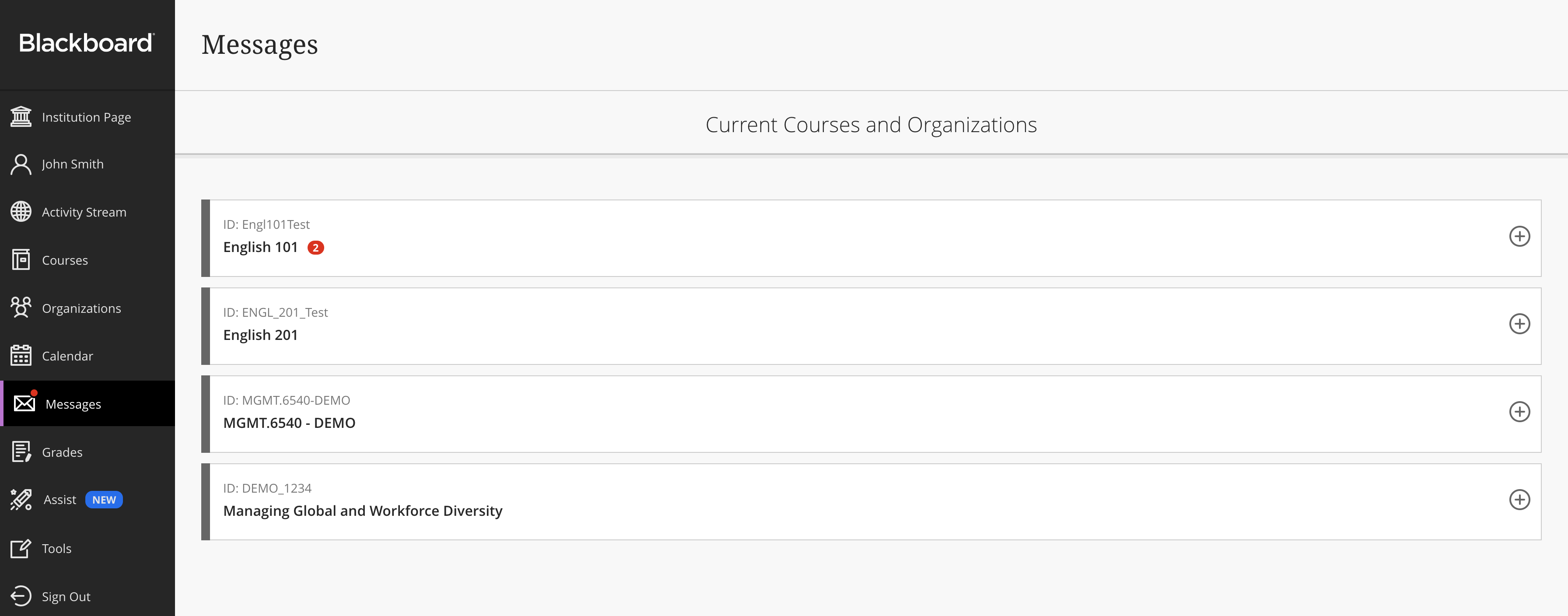
From here, you can click on the course title to be taken directly to the Messages/Mail tool, and you can also hit the "+" to compose and send a message.