Faculty who teach HyFlex courses can opt to use the Respondus LockDown Browser combined with their usual Zoom meeting for their virtual students. This allows you to see virtual students on Zoom during your in-class exam, while locking all student’s browsers so that opening up other applications or webpages is blocked.
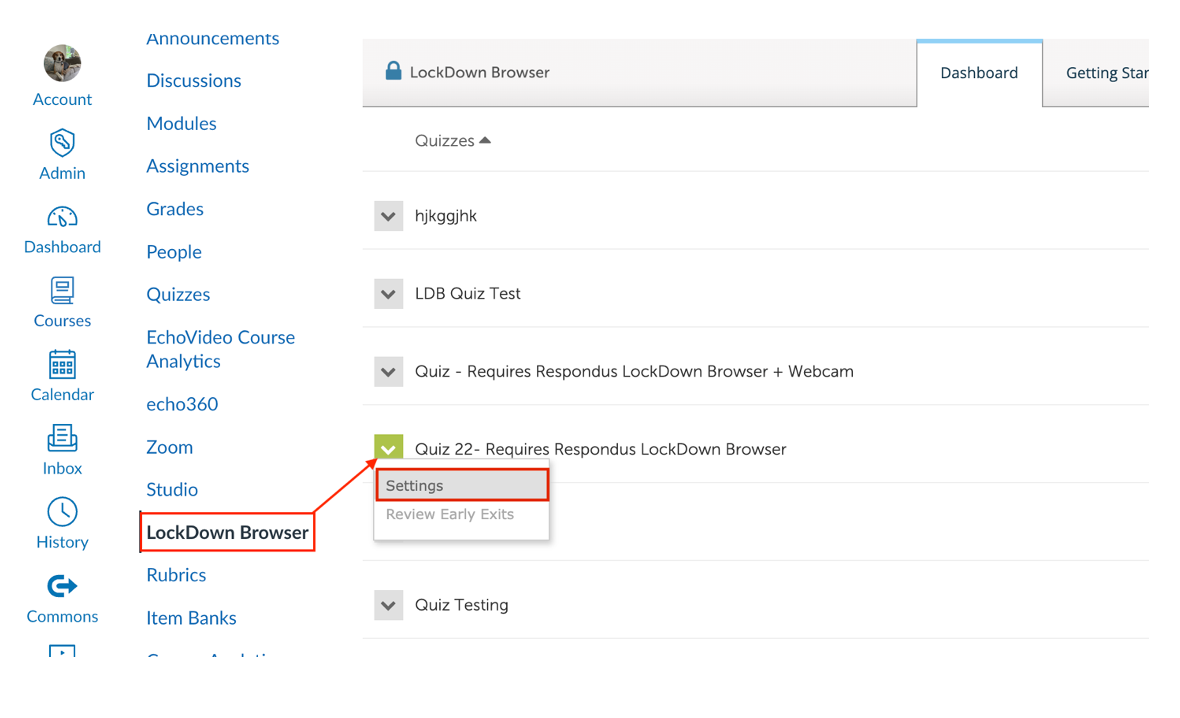
This requires Respondus to be enabled in your course – if you don’t see “LockDown Browser” in your course menu (see screenshot below), then email onlinelearning@uml.edu to make the request. It also requires the use of Canvas’ test/quiz tool.
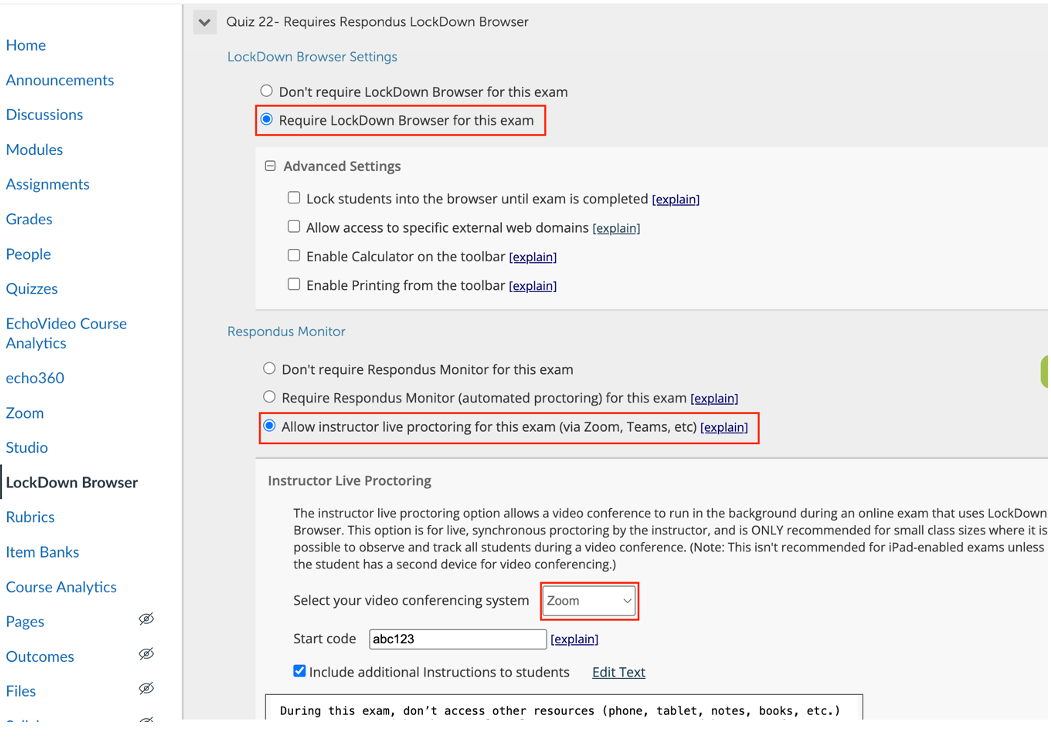
Once Respondus is enabled, follow the screenshots below to require the LockDown Browser for an exam and also to allow instructor live proctoring for an exam.
Be sure to include a “Start code” so that students cannot access the exam until they are in class and you verbally tell them the code.
Important: If you set this up, your in-person students will also only be able to access an exam with the LockDown Browser. Please make sure you include a link in Canvas to install the browser and/or include the “Live Proctoring Student Instructions.docx”, have a practice exam so students can make sure it works, and encourage students to come to the exam prepared and having already tested the LockDown Browser.