Blackboard
Weekly chats should still be linked from your online courses via Zoom or Collaborate, but instructors may wish to include these for students in their Blackboard Calendar so they can see it on their schedules. To schedule weekly chats from your calendar, select "Calendar" from the Base Navigation menu. Select the "+" button and add an event.

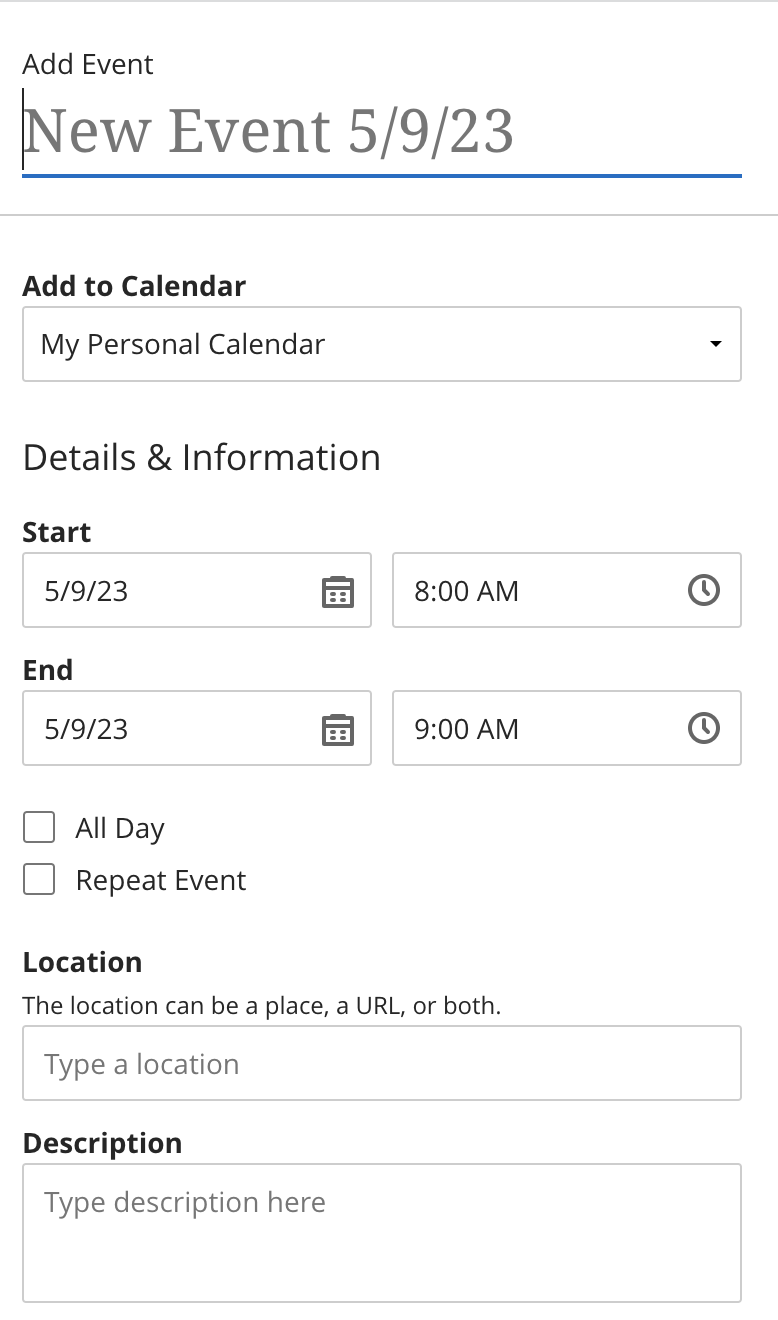
Then you'll see the panel below.
- Under Add to Calendar, be sure to select the course for which you want to schedule the chats.
- Select Repeat Event and fill out accordingly.
- Under Location, you can add your Zoom meeting link. If you are using Zoom or Collaborate for weekly chats, and these are linked in your course, you might just want to add here "link to the weekly chat can be found in the course".
- Save when complete.