In Canvas, instructors can select pieces of content from an existing course to copy into a new course. This process usually only takes a minute or two, and you need to be logged into Canvas to initiate a course copy.
Note: In order to copy course content in Canvas, a user must be the Instructor in both the source course and the destination course.
- Begin in the course that you want to copy content to. This will most likely be a new course that is blank.
- On the right side of the page, select Import Existing Content.
- Under Content Type, choose Copy a Canvas Course.
- In Search for a course, type the name of the existing course you would like to copy. Make sure the box Include completed courses is checked.
- For Content choose Select Specific Content.
- Select +Add to Import Queue.

- Under Current Jobs, you will see your job. On the right of your job, choose Select Content.
- Select the content you wish to copy. An arrow indicates that there are multiple items for one type of content.
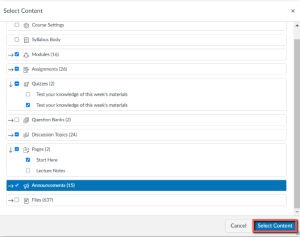
- Select the arrow to view the items.
- Choose Select Content to start the copy. A progress bar will appear. When it is complete, the copy is finished.
- View your new course to verify the copy was successful.
Canvas guides