Subtitles are automatically added to all Canvas Studio videos. However, there are occasionally edits that an instructor would like to make.
To edit captions in Canvas Studio, follow the steps below:
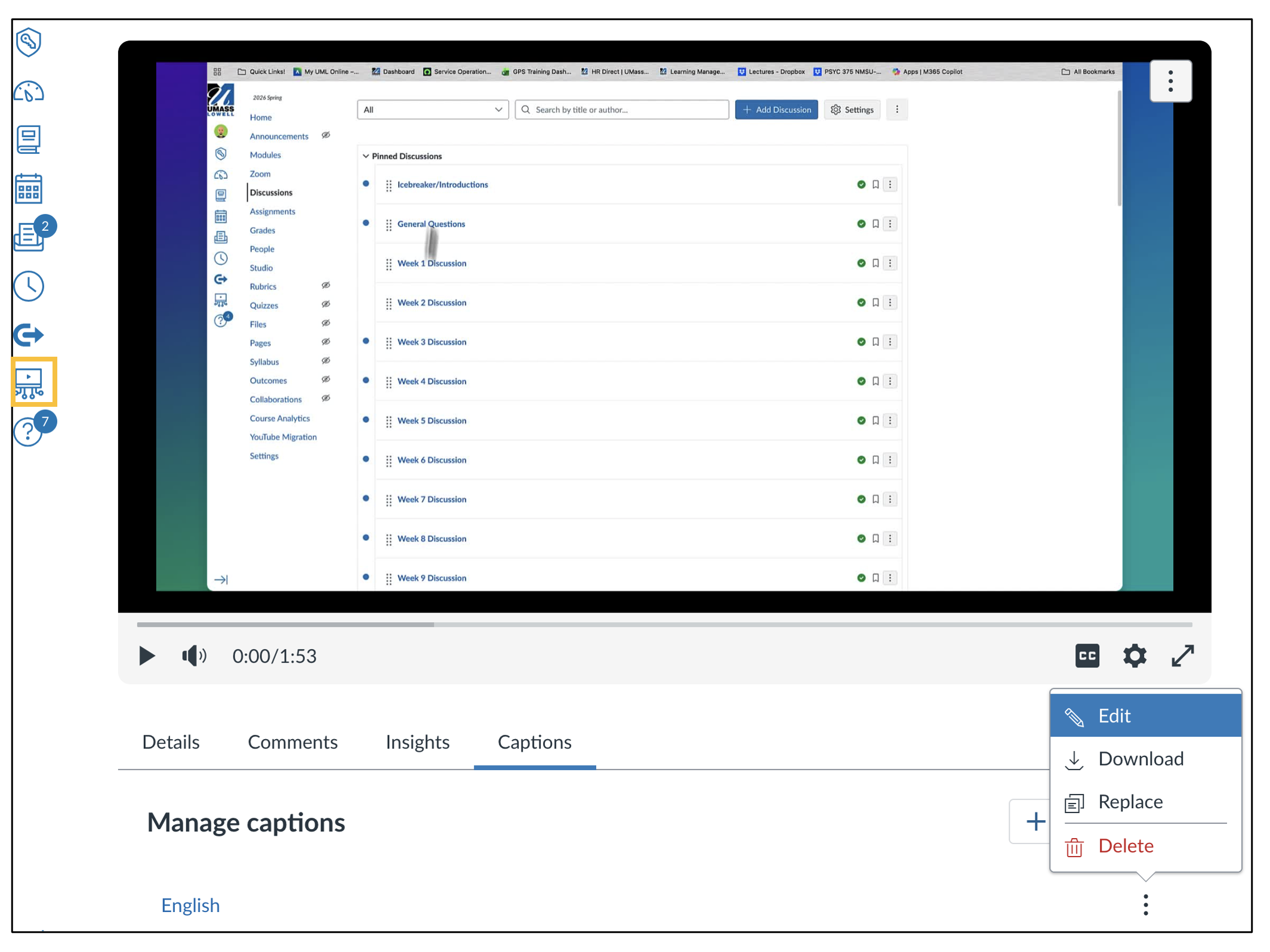
- After logging in to Canvas, select the Studio option on your global (far left) menu. It is a TV icon.
- In your Canvas Studio Library, select the video you want to work with.
- In the menu in the bottom-center of your screen, select Captions.
- The captions are listed by language. To the right of the first one listed, select the option menu and then Edit.
- You will see the captions. Select the piece of text you want to edit, and then make the changes on the Caption Text Box. See image below. The changes will be saved automatically.
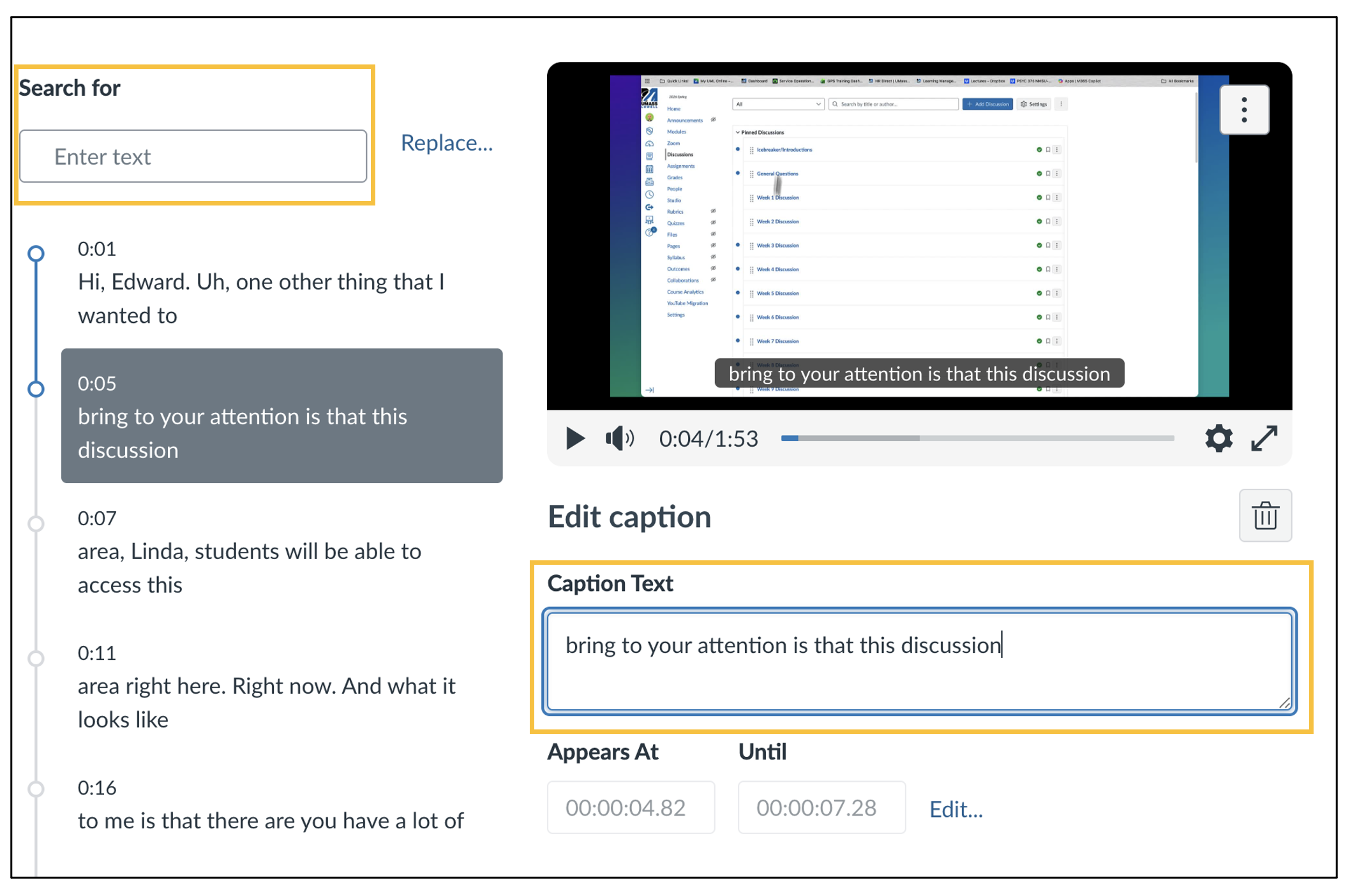
*Tip: to replace all instances of the same word, use the Search For and Replace option.