Canvas has a setting to display or not display total score and assignment group totals to students. If you are not using a Weighted Total setup for your gradebook, or if you just do not want these totals being displayed, then you might want to check the "Hide totals in student grades summary" setting.
- Go to your course in Canvas.
- Click on Settings in the course navigation.
- Scroll to Hide totals in student grades summary.
- Check the box to hide the total column from student view and click Update Course Details.
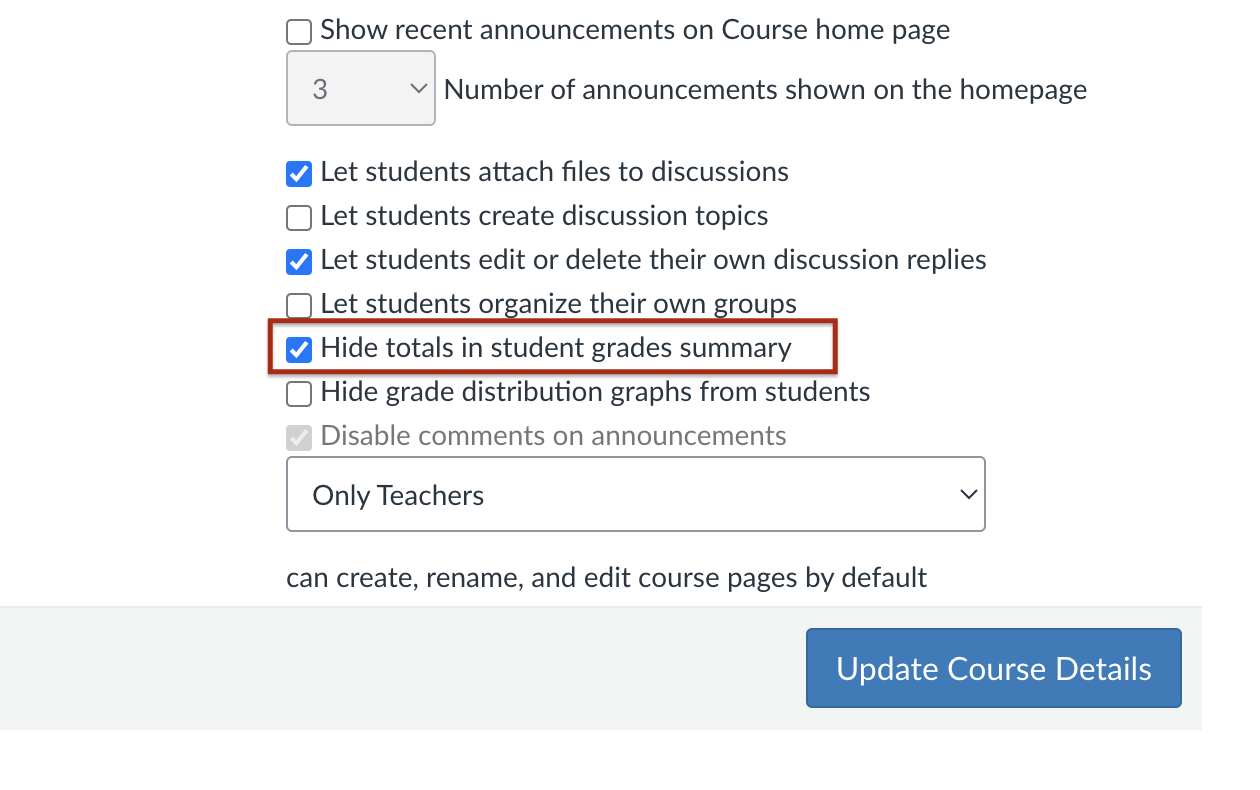
- Click Update Course Details to save.
Image 1 below shows the student grades area when this setting is unchecked:
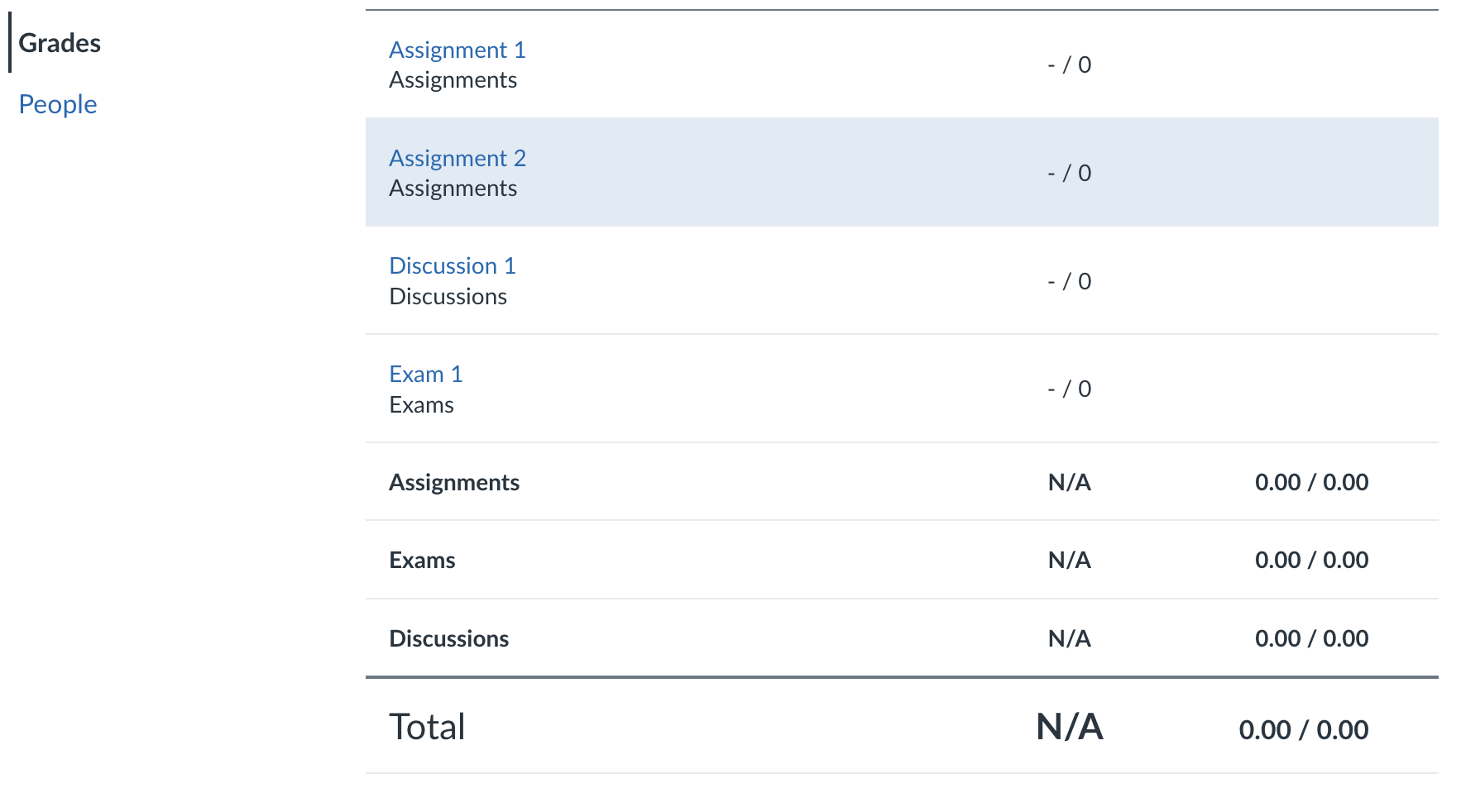
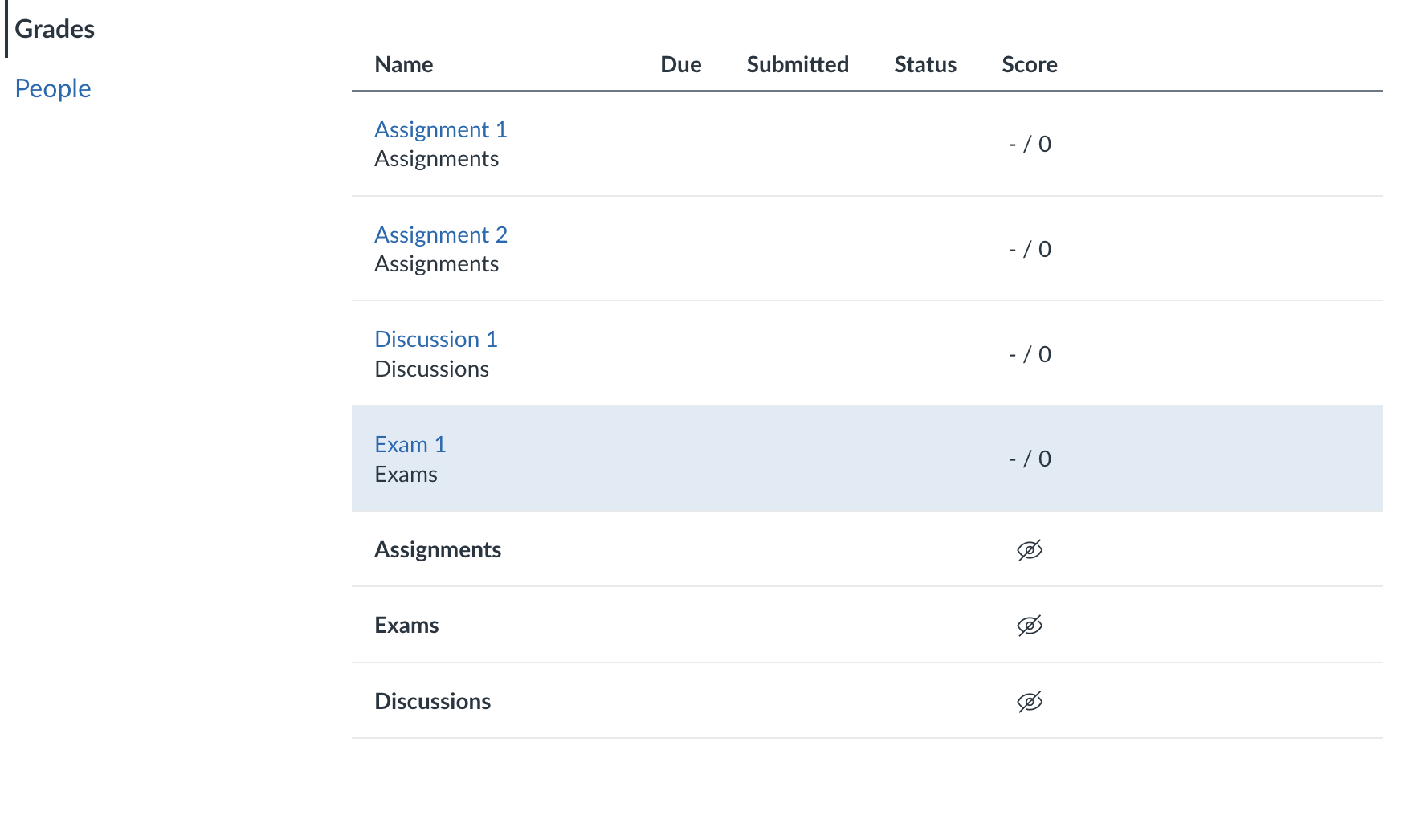
Image 2 below shows the student grades area when this setting is checked. Students will still see the Asignment Groups you have set up, but no scores and no Total score will be shown:
✅ Important Notes:
- These settings only affect the student view of the gradebook.
- You (as the instructor) will still see all totals in your Grades area (this can also be turned off in Grades > Settings).
- Hiding grades doesn't prevent feedback or score visibility for individual assignments unless you also mute/hide those individually.
Canvas Guides