Part I: Create a test/quiz
- Click Quizzes on the course menu.
- Click the +Quiz button to add a quiz.
- Enter the quiz name into the Assignment Name box.
- Enter total points for the quiz into the Points box.
- Enter due date and availability dates, if needed.
- Click the Build button at the bottom to start adding questions.
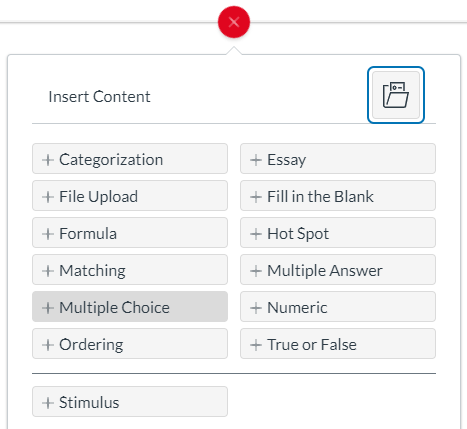
- Click + to add a question and select a question type.
- Click in the Add a question stem box to type the question text and enter answer choices into the answer boxes.

9. Select the correct answer (click the circle button).
10. Enter the number of points question is worth and click Done.
Important: The total number of points for all questions on the quiz must add up to the total points you entered into the Points box for the quiz in step 4.
11. After you are done entering all questions, click the Settings tab to set up a time limit, question display and other options.
Important: By default, students can see their quiz results right after they take the quiz. Click the Restrict Student Results View toggle button to select what you want students to see after taking the test.
Part II: Adding the quiz to a Module
- Click + to the right of the Module title where you want to add the quiz.
- Select Quiz from the drop-down menu.
- Select the name of the quiz and click Add Item.
Quiz/Test tool video tutorial