Add a Module
Modules are used to organize course content by weeks (similar to folders in Blackboard). With modules, you are essentially creating a one-directional linear flow of what you would like your students to do. Course content will exist within a module, so you must add a module prior to adding any course content.
To add a module, select the + Module button on your homepage. Then give it a name (i.e., "Week 1").

Add a File
To add a file (pptx, pdf, docx), select the + button on your module. This will allow you to add an item (each piece of content you add is called an item).

Next to Add, select File. Choose Create File(s) and Choose File. Select Add Item, and your file will appear in the module.

Add a Page
Pages can include text, video, and links to files and other course content that you build within Canvas. To add a Page, select the + button on your module to add an item.
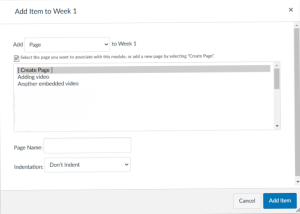
Next to Add, select Page. Choose Create Page and provide a Page Name. Select Add Item, and your page will appear in the module.
From your module, select the page, and then edit to add content to your page.

Canvas Guides